
OpenWith The browser chooser for Windows, macOS & Linux
Work. Personal. Private. The right browser, every time.
You juggle browsers. Work in Edge, personal in Safari, shopping in Chrome, banking in Firefox. OpenWith makes sure every link lands exactly where it should.
Free, no account needed. Pro is $20 one-time.
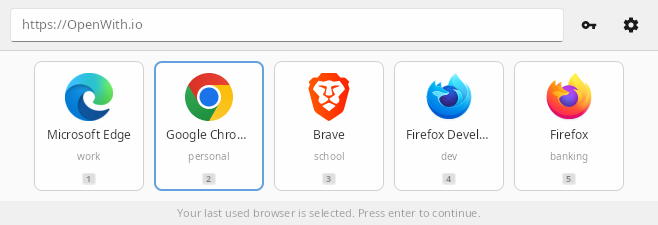
Browsers have multiplied. Your OS hasn't kept up.
Every link opens in your "default" browser. But you don't have one default anymore.
Take control of every click
Quick Picker
Keyboard-driven browser selection. Up, down, Enter. Done.
URL Pattern Rules
Send each website to its own browser: Notion to one, GitHub to another. Set a browser per website.
Auto-Detection
Finds every browser on your system automatically. Add custom ones too.
Browser Profiles
Skip the clunky profile picker. Route links directly to Work, Personal, or any profile. How it works.
Fast and Light
A native app built with Rust. It starts quickly, uses little memory, and stays out of your way.
System Integration
Once registered as your default, intercepts every http/https link.
Browser Extension
Send links from inside Chrome or Firefox to another browser. Alt-click a link, or right-click and choose OpenWith.
Dark Mode
Follows your system theme. Light and dark, automatically.
Localized
Available in 12 languages: English, Spanish, German, French, Portuguese, Italian, Japanese, Chinese, Korean, Russian, Dutch, and Arabic. Uses your system language automatically.
URL Rewriting Pro
Redirect twitter.com to nitter, or medium.com to scribe. Privacy-friendly alternatives, automatically.
Frequently asked questions
What is a browser chooser?
A browser chooser (also called a browser picker or browser selector) is a small app that sits between your links and your browsers. Instead of every link opening in one default browser, it asks which browser to use, or picks the right one for you. OpenWith is a browser chooser for Windows, macOS, and Linux.
How do I choose which browser opens a link?
Set OpenWith as your default browser. Now, when you click a link in any app, such as Slack, Teams, or Outlook, OpenWith pops up with a list of your browsers. Click one, or use the arrow keys and Enter, and the link opens there. See how to control links from Slack, Teams, and Outlook.
Can I set a different default browser for different websites?
Yes. Add a rule for a website, for example "GitHub links open in Firefox" or "Google Docs links open in Chrome", and those links go to that browser or browser profile. Turn on auto-open, and they open right away, with no pop-up. See how to set a browser per website.
Can I open a link in a different browser from inside Chrome or Firefox?
Yes, with the free OpenWith extension for Chrome and Firefox. Alt-click a link, or right-click it and choose Open with OpenWith. See how it works.
Does OpenWith work on Windows, macOS, and Linux?
Yes. OpenWith is a native app for all three. See the setup for Windows, macOS, and Linux. If you use Choosy, Velja, Finicky, or another picker, see how OpenWith compares.
Is OpenWith safe to install?
Yes. OpenWith is made by SmartAppsCo LLC, an American software company, and we take security and privacy seriously. The macOS app is signed and notarized by Apple, and the Windows installer is digitally signed, so your computer can confirm that the download comes from us and was not changed. OpenWith needs no account and runs entirely on your computer.
Is OpenWith free?
Yes. The free version includes the browser chooser, 2 browsers, and 3 rules. OpenWith Pro is a $20 one-time purchase, not a subscription. It adds unlimited browsers and rules, auto-open with a delay, and link rewriting. Pro includes one year of feature updates, and your Pro license keeps working after that year.
Does OpenWith track the links I open?
No. No link data leaves your computer: OpenWith does not record or send the links you open or the browsers you use. The app only goes online to check for updates, to verify a Pro license, and to send feedback when you choose to. Read the privacy policy for details.
Get started in seconds
Free forever. Upgrade when you need more power.
Download for FreeBrowser extension: Chrome · Firefox
Your download has started. Next steps:
- Run the installer.
- Open OpenWith, go to Settings, and click Set as Default.
- In Default apps, choose OpenWith as your web browser.
- Open the DMG and drag OpenWith to Applications.
- Open OpenWith, go to Settings, and click Set as Default.
- Confirm when macOS asks to change the default browser.
- Make the AppImage executable and run it:
chmod +x ~/Downloads/OpenWith-linux.AppImage && ~/Downloads/OpenWith-linux.AppImage - In OpenWith, go to Settings, click Register, then Set as Default.
Free
$0
- Browser chooser popup
- 2 browsers
- 3 URL rules
- Dark mode
Pro
$20 one-time
- Everything in Free
- Unlimited browsers
- Unlimited rules
- Auto-open with delay
- URL rewriting
- 1 year of feature updates